
lorexitech.com

Unless otherwise stated, this website is not related or associated with any third-party brand. Brands, trademarks, logos, and company names are merely used as examples.

Fix Lorex Camera Not Connecting to WiFi

How to Fix Lorex Camera Not Connecting to WiFi

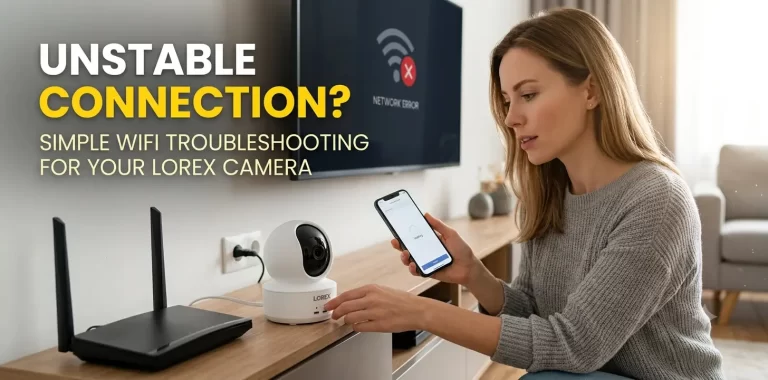
Is your Lorex camera not connecting to WiFi during setup or suddenly showing offline? The problem is often caused by the wrong WiFi band, an incorrect password, weak signal, app permissions or a router connection issue.

The good news is that most Lorex camera WiFi problems can be fixed with a few simple checks. This guide walks you through the most common solutions, including how to reconnect your camera to a new wireless network.


If your Lorex camera won’t connect to WiFi, first confirm that your camera supports your router’s WiFi band, enter the correct password and move the camera closer to the router. Then restart the router, update the Lorex app and reconnect the camera through the app.

For many Lorex models, 2.4 GHz WiFi is required, while some newer models support both 2.4 GHz and 5 GHz networks. Always check your camera model’s specifications before changing router settings.

Why Is My Lorex Camera Not Connecting to WiFi?

There isn’t always one reason behind a Lorex camera WiFi connection problem. The cause can be something as simple as a wrong password or as specific as an incompatible WiFi band.

Here are the most common causes:

Possible cause

What to check

Wrong WiFi band

Check whether your camera needs 2.4 GHz or supports 5 GHz

Incorrect password

Re-enter the WiFi password carefully

Weak signal

Move the camera closer to the router

Router problem

Test WiFi with another device and restart the router

App issue

Update or restart the Lorex app

Permissions blocked

Allow Bluetooth and Location access during setup

VPN interference

Temporarily disable VPN during onboarding

Outdated firmware

Install available camera firmware updates

Camera needs resetting

Reset and add the camera again

Lorex also notes that app screens and setup options can vary depending on the camera model, firmware and app version.

How to Fix Lorex Camera Not Connecting to WiFi

Try these fixes in order. Start with the simple ones before resetting your camera.

1. Check the WiFi Band

This is one of the first things to check when your Lorex camera is not connecting to a wireless network. Some Lorex cameras work only with a 2.4 GHz Wi-Fi network, while other models support dual-band WiFi, including both 2.4 GHz and 5 GHz.

If you have a dual-band router:

  • Check your camera’s specifications.
  • Make sure the required WiFi band is enabled.
  • Select the correct network during setup.
  • If your camera supports only 2.4 GHz, don’t try to connect it to a 5 GHz-only network.

Tip: Your camera’s model number can usually be checked in its product documentation or, for supported cameras, under Settings > Device info in the Lorex Connect app.
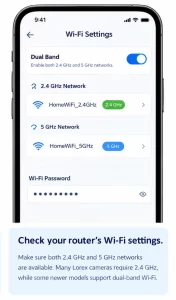
Check the WiFi Band

2. Recheck the WiFi Password

An incorrect WiFi password can cause a connection timeout even when the network appears in the app.

Before trying again:

  • Check the password on your router or phone.
  • Make sure uppercase and lowercase letters are correct.
  • Avoid accidentally adding a space before or after the password.
  • Re-enter it carefully in the Lorex app.

If the password was recently changed, the camera may also need to be reconnected to the new network.

3. Move the Camera Closer to the Router

A weak signal can prevent the initial setup from completing or cause the camera to disconnect later. For troubleshooting, temporarily place the camera close to your router. Lorex recommends keeping WiFi cameras within a reasonable range and avoiding thick walls, metal objects and electronic devices that can interfere with the wireless signal.

If the camera connects successfully when it is near the router, the issue is probably related to WiFi coverage rather than the camera itself.

4. Restart Your Router and Camera

A simple restart can clear a temporary network problem. Restart the router:

  • Unplug the router from power.
  • Wait about one minute.
  • Plug it back in.
  • Wait until the WiFi network is fully available.

Then power-cycle the Lorex camera and try connecting again. Lorex recommends restarting the router and checking the internet connection when troubleshooting offline WiFi cameras.

5. Update the Lorex App

Make sure you are using the latest version of the app associated with your camera. Depending on the model, you may use the Lorex Home app, Lorex Connect app or another Lorex application.

For newer Lorex Connect devices, Lorex recommends keeping the app updated and allowing required Bluetooth, Camera and Location permissions during setup. If the app cannot detect your camera:

  • Close and reopen the app.
  • Restart your phone.
  • Check the required permissions.
  • Try setup again near the router.

6. Temporarily Disable Your VPN

A VPN can interfere with the camera onboarding process.

If you have a VPN enabled on your phone, temporarily turn it off while setting up the camera. Lorex specifically notes that VPN connections can interfere with onboarding and prevent a device from connecting successfully.

Once the camera is successfully connected, you can turn the VPN back on and test the connection.

7. Check the Camera’s Power

A WiFi connection problem can sometimes look like a network problem when the camera isn’t receiving stable power.

Make sure:

  • The power adapter is firmly connected.
  • The cable is not damaged.
  • The camera is switched on, if applicable.
  • The status LED shows that the camera is powered and ready for setup.

For battery-powered models, also check the battery level before continuing.

8. Reconnect the Camera Through the Lorex App

If your camera was previously connected but is now offline, you may not need to start from scratch. For supported Lorex Connect cameras:

  • Open the Lorex Connect app.
  • Open your camera’s settings.
  • Go to Settings > Device info > Wi-Fi network.
  • Select the new WiFi network.
  • Enter the WiFi password.
  • Wait for the camera to reconnect.
  • The exact menu names can vary by model and app version.

Older cameras may use a different menu, such as Wireless Network, inside the Lorex app.
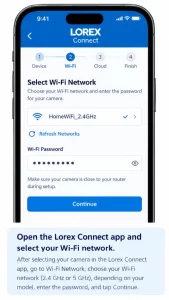
Reconnect the Camera Through the Lorex App

How to Fix Lorex Camera WiFi Issues in Specific Situations

Lorex Camera Is Not Detected by the App

If the camera doesn’t appear during setup, first confirm that it is powered on and in setup mode.

Then:

  • Enable Bluetooth if your model requires it.
  • Allow Location and Camera permissions.
  • Keep your phone and camera close to the router.
  • Confirm you’re using the correct WiFi band.
  • Turn off your VPN temporarily.
  • Update the Lorex app.

Lorex’s current onboarding instructions use Bluetooth for supported newer cameras and require selecting the appropriate WiFi network during setup.

Camera Connects but Goes Offline

If your camera connects successfully but later shows offline, check the WiFi signal and internet connection first.

Try:

  • Restarting the router.
  • Restarting the camera.
  • Moving the camera closer to the router.
  • Checking the WiFi strength in the app, if available.
  • Updating the camera firmware.
  • Reconnecting the camera to WiFi.

Lorex Connect provides WiFi signal information for supported cameras under Device info, which can help identify a weak connection.
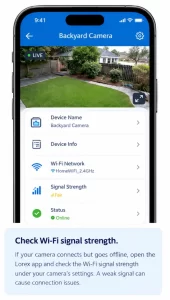
Camera Connects but Goes Offline

Camera Won’t Connect After Changing the Router

Changing your router, WiFi name or password can disconnect the camera from your network.

For supported cameras, open the Lorex app and select the new WiFi network under the camera’s WiFi settings. Some models may require a reset before they can be added to the new network.

If you’re replacing your router completely, check the model-specific setup instructions before resetting the camera.

Resetting the Lorex Camera

A reset should generally be one of the last troubleshooting steps because it can remove the camera’s current network configuration.

The reset procedure varies significantly by Lorex model. Some cameras require holding a physical reset button for several seconds, while others have different reset procedures.

Before performing a factory reset, save any important recordings and check the instructions for your exact Lorex camera model number.

After resetting, you’ll usually need to add the camera to the Lorex app and configure its WiFi connection again.

You can also check our guide on setting up Lorex with Alexa.

When to Contact Lorex Support

If your Lorex camera WiFi is not working after trying the steps above, it’s time to check model-specific support.

Contact Lorex if:

  • The camera will not enter setup mode.
  • The camera repeatedly shows a connection timeout.
  • The camera cannot connect even when placed next to the router.
  • Other devices work normally on the same WiFi network.
  • The camera fails after a reset.
  • The status LED indicates a hardware or connection fault.
  • You have confirmed that the WiFi band and password are correct.

Have your camera’s model number, serial number, app version and router information ready. This can make troubleshooting much faster. If the issue involves your Lorex account, you can also check Lorex Camera Login information before contacting support.

Frequently Asked Questions

Why won't my Lorex camera connect to WiFi?

Common causes include an unsupported WiFi band, incorrect password, weak signal, blocked app permissions, VPN interference or a temporary router problem. Check your camera’s specifications first because WiFi compatibility varies between Lorex models.

Does Lorex camera need 2.4 GHz WiFi?

Some Lorex cameras require 2.4 GHz WiFi, while newer models support both 2.4 GHz and 5 GHz. Check the specifications for your exact model before changing your router settings.

How do I reconnect my Lorex camera to a new WiFi network?

For supported models, open the Lorex app, go to the camera’s settings, select the WiFi network option, choose your new network and enter its password. Some cameras may require a reset before reconnecting.

Why does my Lorex camera say offline but WiFi is working?

Your camera may have a weak signal, lost its WiFi credentials or temporarily lost its connection to the router. Restart the router and camera, move the camera closer to the router and reconnect it through the Lorex app if necessary.

How do I reset my Lorex camera's WiFi connection?

The reset process depends on the camera model. Some models use a physical reset button, while others offer WiFi changes directly through the app. Check your model-specific Lorex guide before performing a factory reset.

Can I connect my Lorex camera to WiFi without the app?

For many modern Lorex WiFi cameras, the app is part of the normal setup process. Newer models use the Lorex Connect app for onboarding, while some older products use the Lorex Home or other Lorex apps. The exact lorex camera setup method depends on the camera model.

Final Thoughts

A Lorex camera not connecting to WiFi is usually caused by a few basic issues: WiFi band compatibility, an incorrect password, weak signal, router problems or app-related setup issues.

Start by checking your camera’s supported WiFi band and password, then restart the router, move the camera closer and reconnect it through the correct Lorex app. If the problem continues, use the model-specific reset and troubleshooting instructions before contacting Lorex Support.

Once your camera is back online, you can also explore related guides such as Lorex home for PC and how to setup Lorex with Alexa for additional features.

error: Content is protected !!